Support
Frequently asked questions
Quick answers, grouped by topic. Setup details for firmware 6.1 come first; older firmware is noted where it differs.
Buying and gifts
I am new to LED sectionals (METAR maps). What do you recommend?
Start small. The best way to learn is with a small kit so you understand the full process. A 5 to 10 light kit makes a perfect learner kit, and we can provide the map and frame too. Once you get the feel for a small kit, try a larger one.
My child is a pilot. Would they like this?
Yes! Many of our orders are gifts to pilots. For gifts we recommend the kits with 5 to 20 lights that include the frame and map. That makes assembly as easy as possible, and they can usually enjoy the map the day it arrives (setup takes about 30 minutes).
How long does it take to assemble?
It depends. The 25 light kit we built for the video tutorials took about an hour. It also depends on how much detail you want to put into it. That is the beauty of a DIY kit: you decide.
Is there a subscription?
No. There are no annual fees and no subscriptions. Your map gets its weather free for the life of the map. Major new firmware versions, like 6.1, are an optional one-time upgrade for older maps. See firmware updates.
Can you make the map file for me?
Yes. Map file creation is free with every kit. Contact support with your order number and we will email you a file you can print locally. Up to 2 edits are included, as time permits. Kits with a printed map include a proof by email before we print.
Where do you get the hybrid map views?
From the FAA's U.S. VFR Wall Planning Chart. It is a large download. Find it under the planning charts on the FAA VFR charts page.
I would like to do a group buy. Do you offer discounts?
Yes. If you are ordering 10 or more kits in one order, contact us for a quote.
Do you ship internationally?
Yes. Checkout prices shipping to Canada, Europe, Australia, Japan and other countries for kits, hubs, lights and maps up to 18x24. If checkout does not list your country, or for a 24x36 map outside the USA, contact us for a shipping quote before you order.
Do you sell larger kits? I would like 1,000 lights.
We can build custom kits that size. They do get pricey, so contact us for a quote. Kits that size need more than one hub and a separate power supply.
If this is your first DIY LED sectional, we recommend starting with a 5 to 10 light kit before a larger project. Each hub runs up to 250 lights from our kits with no modification.
Do you offer returns?
As a custom built product, all sales are final.
Setup and programming
Do I need to connect the hub to a computer to program it?
No. All programming is done over WiFi. You need a smartphone or laptop (some desktops with WiFi work too). See getting started.
Can I program my airports before assembling?
Sure. Go at your own pace and in whatever order works best for you. The videos show how to connect over WiFi and program.
How do I get back into setup mode?
Firmware 6.1: use a power double-tap. With the map running, unplug it and plug it back in, then unplug again within 10 seconds and plug in once more. The map turns solid red and the DIY_METAR_SETUP network appears. Your current settings are already filled in.
Older firmware (2023 or newer maps): plug the map in, unplug it within 3 seconds, and plug it in again. Red lights should appear. Wait 30 seconds, then connect over WiFi.
How do I enter my airport codes?
Type the four-letter codes separated by commas, in the order the lights are wired. The first code is the light closest to the hub. For US airports that is K plus the three-letter code, so Lakeland (LAL) is KLAL. An airport like X70 becomes KX70.
Need to skip a light? Use SKIP. For Lakeland, two skipped lights, then Bartow: KLAL,SKIP,SKIP,KBOW. Need help finding codes? Try SkyVector.
An example list of 25 airports:
KSRQ,KPIE,KMCF,KTPA,KBKV,KCGC,KOCF,KLEE,KZPH,KLAL,KX07,KBOW,KGIF,KISM,KMCO,KORL,KSFB,KDAB,KTIX,KXMR,KMLB,KVRB,KFPR,KOBE,KSEF
How does the virtual legend work?
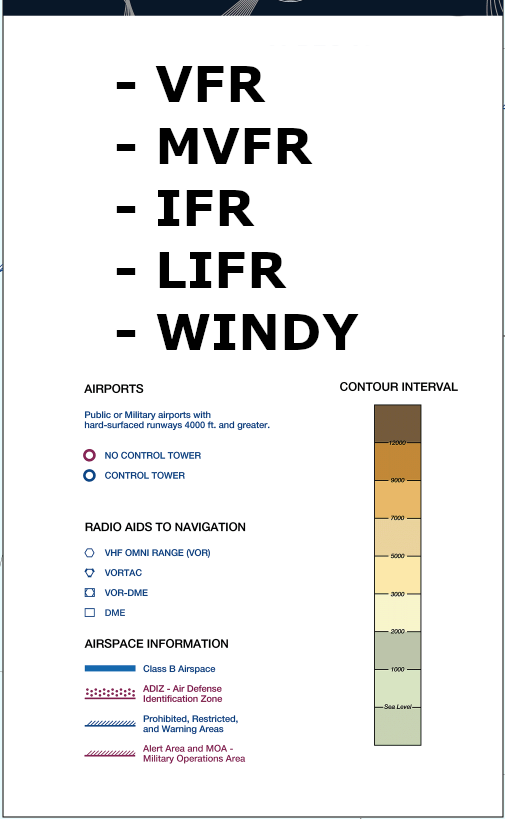
You can place legend lights anywhere in your airport list with these codes. Each one holds a fixed color:
L1VFR greenL2MVFR blueL3IFR redL4LIFR magenta (pink)L5windy yellowL6white, for example a white glow to light the map from behindL7cyan (firmware 6.1)
Five airports, then the five legend lights, then five more airports:
KLAL,KBOW,KGIF,KTPA,KSPG,L1,L2,L3,L4,L5,KMCO,KMLB,KSFB,KLEE,KOCF
Want the first five lights to be the legend?
L1,L2,L3,L4,L5,KMCO,KMLB,KSFB,KLEE,KOCF
What does "Fill blank weather reports" do?
Sometimes an airport skips a report, or its equipment is broken. On firmware 6.1 this setting shows airports with no report in green instead of dark. On older firmware, "fill in the blank" looked at a nearby airport and guessed the current condition. Either way, SKIP still keeps a light off.
We recommend making sure every light works before turning this on for a new map, because a filled light is not a real weather report.
What is the WiFi compatibility setting?
On older firmware (4.x), some dual-band routers would not work with the hub. Setting WiFi compatibility to Y fixed most of them. Firmware 6.1 does not have this setting. If a map on 6.1 will not join your router, see map stuck on pink.
If I order a 25 light kit, can I add lights later?
Yes. Order an extra light pack and plug it onto the end of your strip. Each hub runs up to 250 lights. For bigger maps, split them across two hubs, for example the East Coast on one hub and the West Coast on another.
Lights and troubleshooting
What do the lights mean?
Each light is one airport, colored by its flight category from the latest weather report:
- Green, VFR: ceiling above 3,000 ft and visibility over 5 miles.
- Blue, MVFR: ceiling 1,000 to 3,000 ft and/or visibility 3 to 5 miles.
- Red, IFR: ceiling 500 to under 1,000 ft and/or visibility 1 to under 3 miles.
- Magenta, LIFR: ceiling under 500 ft and/or visibility under 1 mile.
Moving lights: flashing yellow means windy (above your Max wind setting), a quick white flicker means lightning, breathing toward blue means icing. On firmware 6.1 a light that breathes red is showing an old report, and a dark light has no report right now.
When every light shows the same pattern, the map is telling you about itself: solid red is setup mode, pink is joining WiFi, and white (breathing on 6.1, flashing on older maps) is installing an update, which can take a few minutes. Leave it plugged in.
My map is stuck on pink lights.
Try the step-by-step pink lights troubleshooter. Or work down this list:
- Check the WiFi name and password. Re-enter setup mode and type them again. Both are case sensitive; this is the number one issue we see.
- Check the band. Hub 1.0 needs a 2.4 GHz network. If your router combines bands under one name, it usually works. Hub 2.0 works on both 2.4 GHz and 5 GHz.
- Test with a phone hotspot. On an iPhone, turn on Personal Hotspot and Maximize Compatibility, then set up the hub on the hotspot. If the map works there, the hub is fine and your router is the issue.
- Check your router settings. Look for 802.11b/g/n mixed mode, legacy mode or legacy data rates, or set Min BSS to 2 Mbps. Many newer internet-provider gateways dropped the older, slower data rates; Comcast/Xfinity turned them off in late 2025, and their support cannot turn them back on.
- Add a small extender. If your router has no such setting, an inexpensive WiFi extender or travel router set to mixed mode fixes it. This TP-Link extender is confirmed by several customers.
- Check the network itself. Make sure your internet is working. In a dorm or office, the network administrator may need to approve the map.
Still stuck? Email support@diymetar.com with your hub's serial number and a photo of the map.
One of my airports is not lighting up.
If the other airports work, first check that this one has a current weather report on aviationweather.gov or SkyVector. Small fields often stop reporting overnight. Also check the full code is entered: Lakeland is KLAL, not LAL.
If one airport's light shows another airport's weather, a code is missing or out of order. Count along the strip from the hub.
The colors look swapped (red shows as green).
Change the LED style setting to the other option and save. WS2811 is for older, larger bulbs; WS2812 is for newer pre-built strips.
The whole map is dark.
If it is night and the sleep timer is on, that is expected: the map comes back at your wake time and keeps getting weather while it sleeps. Otherwise check the power, then unplug it for 10 seconds and plug it back in.
My map keeps restarting in a loop of colors.
That was a known issue on older firmware. See the fixes on the firmware page.
I broke a part. Do you offer repairs?
Absolutely. Most of the time we can ship replacement or repair parts inexpensively if something broke during assembly. Email support@diymetar.com and we will help.
Building your map
How does the software work?
DIY METAR works with a small computer we call a hub that connects to your home or office WiFi. The hub gets aviation weather through our servers and turns each airport's flight category into a color on your map, about every 15 minutes. It is not for flight planning and is not a substitute for a weather briefing, but it shows a live picture of the weather at the airports you choose, around the world.
Do the lights have to be plugged in a certain way?
Yes. The lights plug in only one way so the hub can talk to them. Kits come with the right adapters already installed, so just plug them in.
If you are extending or accidentally cut the cord, the wires on the side of the light with the black chip are the ones that go toward the hub.
I need to extend the wires to fit my map. What can I do?
See extending the wires in the build tips.
How do you float the frame off the wall?
See floating the frame in the build tips.
Where are the printed instructions and legend files?
Download the kit instructions (PDF), the large legend (PNG) or the small legend (Word). The printed instructions were written for older firmware; for 6.1, follow getting started.
Still have a question? Email support@diymetar.com.